NFC Card Clock-In Pro / Solo
Instead of typing a PIN, employees can tap an NFC card to the back of the kiosk device to clock in or out instantly. This requires an Android phone or tablet running Chrome, with NFC enabled.
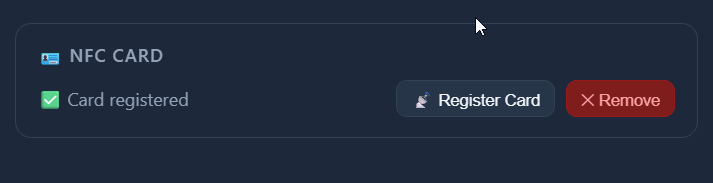
Registering a card for an employee
On an Android device with Chrome, open the kiosk page and tap 📡 Use NFC Card. A 10-second countdown starts.
Hold the NFC card to the back of the phone. The app reads the card and turns it into a scrambled code that only works for your store.
The card's real number is never stored, so a leaked list can't be traced back to a card.
In the Sweldo admin panel, open the employee record and paste that code into the NFC Card field, then save. The 🪪 icon will appear on their employee row to confirm registration.
Using NFC to clock in
On the kiosk (Android + Chrome), tap 📡 Use NFC Card.
Hold the employee's registered card to the back of the device within 10 seconds.
The system matches the card's hash to an employee and processes the clock-in or clock-out immediately — no PIN needed. The same success screen appears as with PIN entry.