Using the Clock-In Kiosk Pro / Solo
The kiosk is the page your employees use to clock in and out. It runs in a browser on any shared device — a tablet on the counter, a phone by the door, or a PC in the workspace. Employees don't need an account.
The clock-in flow
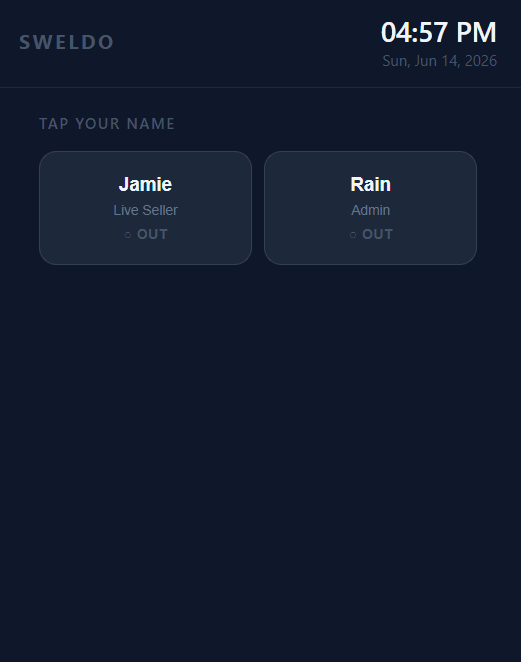
The kiosk shows a grid of all active employees. Each tile shows the employee's name, role, and their current status — ● IN if clocked in, ○ OUT if not.
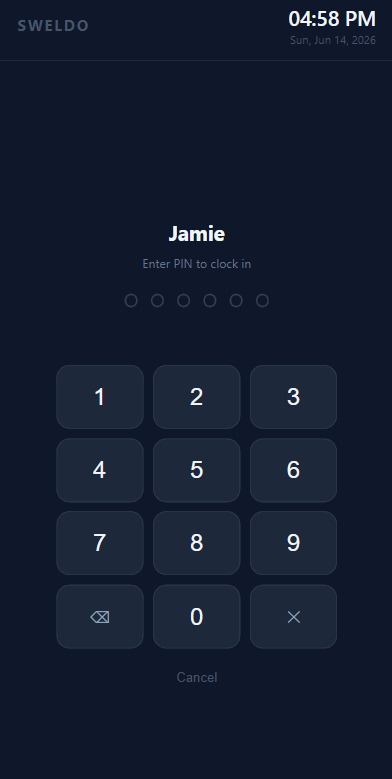
The employee taps their name. The PIN entry screen appears, showing their name and whether this will be a clock-in or clock-out.
They enter their 6-digit PIN using the on-screen keypad. After the 6th digit is entered, the PIN is automatically submitted — there's no separate confirm button.
Wrong PIN: the dots shake red and they can try again. After 3 wrong attempts, the employee is locked out for 30 seconds.
A success screen confirms the action — "Clocked IN" or "Clocked OUT" — with the exact time. After 5 seconds the kiosk automatically returns to the employee grid.
What gets recorded
A time log row is created with the exact clock-in timestamp.
Late minutes = how long after the scheduled shift start she arrived — counted only past the grace period (15 minutes by default).
If the employee has no schedule for today, late minutes = 0 and the entry may be flagged as a rest day.
The time log is updated with the clock-out timestamp.
Hours worked = clock-out minus clock-in.
If the shift was unusually short (under 30 minutes) and wasn't already flagged, it is flagged as ⚡ Short for your review.
Live Seller pairing
When a Live Seller clocks in while a Tagasulat session is running but has no active seller assigned, they are automatically set as the session's active seller. When they clock out, the session's seller slot is cleared — and if another live seller is already clocked in, the kiosk offers a Hand Over button to transfer the session.
Admins clocking in while a session is active are prompted to pair with the session — this links them to the running live so Tagasulat can show the correct admin name on the seller tablet.