Calibrate Your Printer Pocket+
Label printers do not all print letters the same size. Tagasulat asks yours, once, by printing one test label and asking you one question about it. After that the preview tells the truth, and on many printers you get ten text sizes instead of six. It takes about a minute and one sticker.
Do this once per printer. If you use two printers, calibrate each one. The answer is remembered, so you never repeat it unless you change printers.
Connect your printer first. Open Settings → Printer and make sure it says connected — calibrating needs it switched on and nearby.
Set your label size (width and height in mm) to the roll you actually use. Measure the sticker with a ruler if you are not sure. Getting this wrong makes everything below wrong.
Tap Calibrate, at the right-hand end of the same row. One test label prints. It has four lines marked A, B, C, D — each one shorter than the one above it — and a fifth line at the bottom marked E.

First question: which line kept its closing bracket ]?
Every line ends in a ], but the long ones run off the edge of your
sticker and the bracket gets cut off. Read down from A and tap the
first letter whose line still shows its ].
If none of them do, tap No ] anywhere — that is an answer too, and it usually means the width you typed is bigger than the sticker really is. Ignore line E here; it is for the next question.
![The first calibration question, with buttons A, B, C, D and No ] anywhere](img/calibrate-question-e-web.png)
Second question: is line E smaller than line C? Look at the letters themselves, not the line length. If E's letters are visibly smaller, tap E's letters are smaller. If they look the same size, tap They look the same size.

Done. The button now says Calibrate again, and a message tells you how many text sizes your printer offers. Tap Save.
Open Settings → Bluetooth label printer and connect the printer. Set Label size mm to your roll.

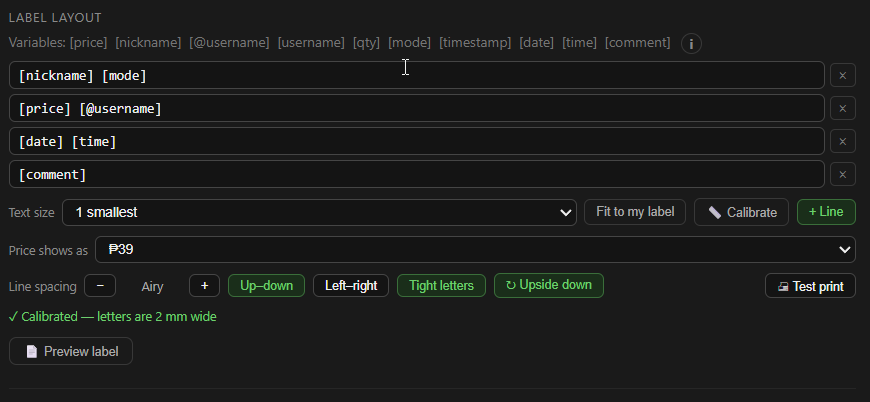
Scroll down to Label layout and click Calibrate, next to Fit to my label.
The same test label prints and the same two questions appear, in the same
order. Read down from A, tap the first line that still shows
its ]…

…then compare line E with line C.

Done. Under the row it now says ✓ Calibrated with the letter width it measured. Click Save.
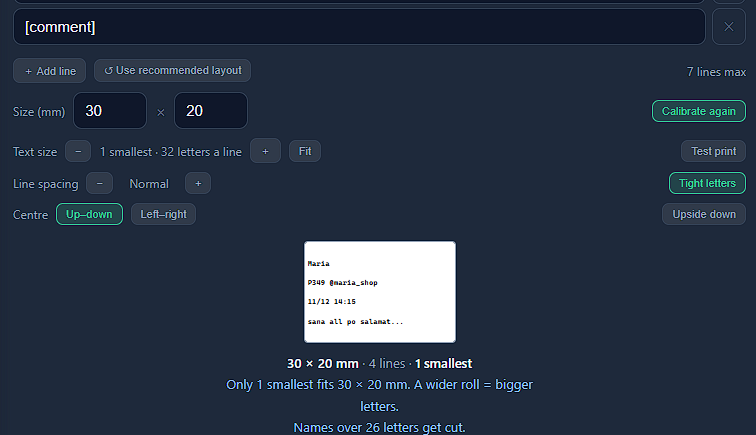
The preview underneath is drawn with whatever your printer measured, so once you have calibrated, what you see there is what comes out of the printer. The line below it says how many letters fit — and warns you when a name is going to get cut.
Calibrate — measures your printer's letters. Do it once per printer. Afterwards the phone's button reads Calibrate again, and the PC shows ✓ Calibrated under the row.
Text size − / + (a dropdown on the PC) — steps through the sizes your printer can do. Six before calibrating, up to ten after. The words beside it say how many letters fit one line at that size.
Fit (Fit to my label on the PC) — picks the biggest size that still fits your template on your sticker. A starting point, not a rule; you can go bigger or smaller after.
Line spacing − / + — how far apart the lines sit, from Tight to Spread. On a full label it may have nothing to move within; the note under the preview says so when that happens.
Tight letters — closes up the space between letters without changing their size, so more of a long name fits one line. Off by default.
Centre: Up–down / Left–right — two separate choices. Up–down puts the block in the middle of the sticker; Left–right centres each line.
Upside down — some printers eject the label the other way up. Turn this on and it comes out the right way round.
Test print — prints a sample label using the settings as they stand right now, including changes you have not saved yet.
No brackets anywhere on the test label. Your label width is set wider than the sticker really is. Measure it and try again.
You get a different answer each time. Answer from the printed sticker in your hand, not from the screen. If it still changes, the roll may be feeding crooked.
A line is missing from the label. It does not fit the height. Use fewer lines, a smaller text size, or a taller sticker — the note under the preview says which line is being lost.
The PC says it cannot talk to the printer. Close Tagasulat in your browser first. A Bluetooth printer talks to one app at a time, and the browser takes it back every minute while its tab is open.