Screenshot Capture (OCR) Basic+ PC only
A manual backup tool that reads a buyer's TikTok profile card and fills in their username and nickname for you — so you can add missed buyers quickly without typing.
What this feature is for
When a buyer gets pinned in your TikTok live, Tagasulat normally captures their username automatically through the TikTok connection. The screenshot capture feature is a manual backup — it lets you click a buyer's username in your browser, have the app read their profile card, and fill in the form for you.
- A pin wasn't caught automatically
- You need to add a buyer you missed during the live
- The TikTok listener isn't connected and you're running the session manually
How to set it up
You only need to do this once before your live starts.
Open your TikTok live in the browser.
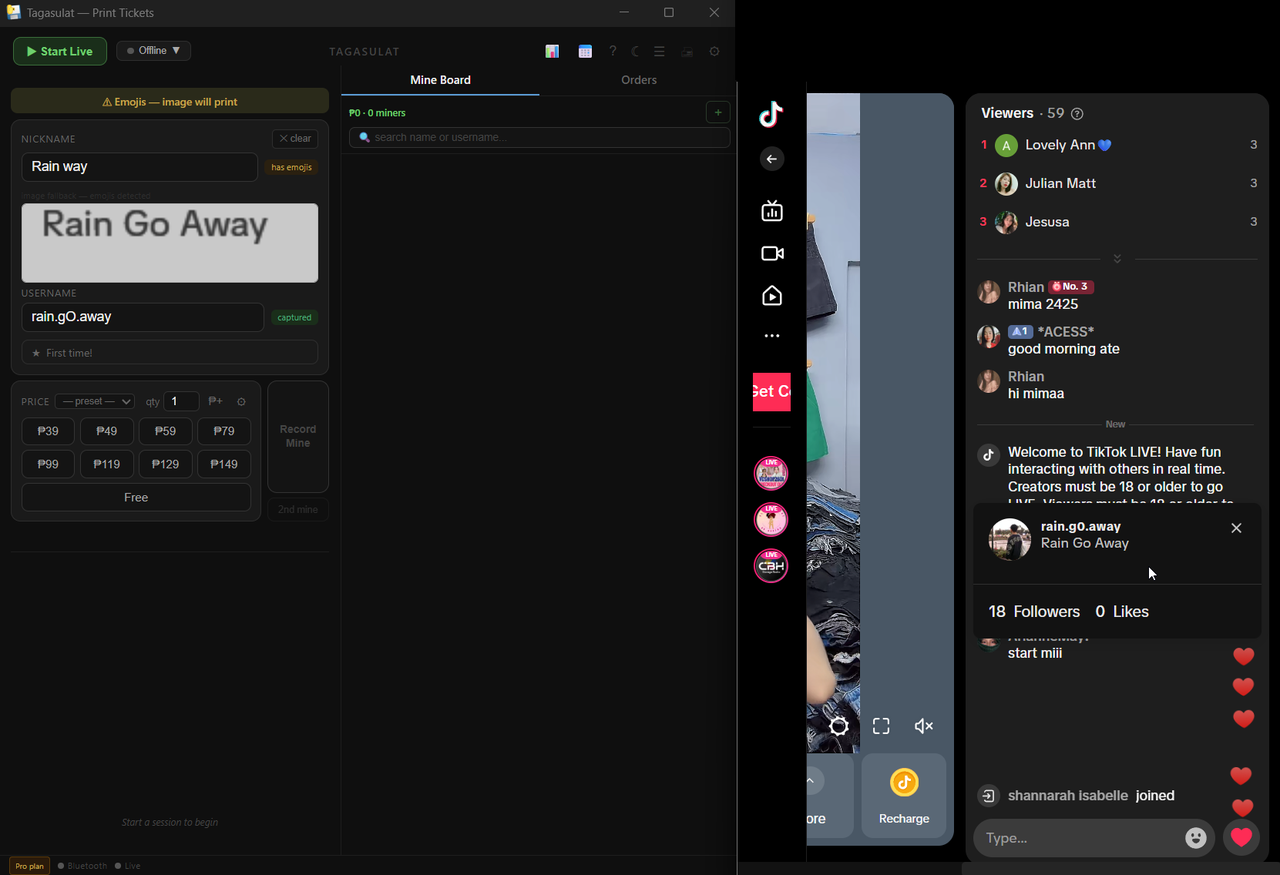
Click on any username in the comment section — a profile card will appear showing their username and nickname.
With the card visible on screen, press F2 in Tagasulat. Your cursor will change to a crosshair.
Click and drag to draw a box tightly around the username and nickname on the profile card.
The app reads the selected region immediately and fills in the username and nickname. The region is not saved — every F2 press opens the selection overlay fresh so you can draw around wherever the profile card currently appears.
How to use it during a live
In your browser, click on the buyer's username in the TikTok live — their profile card appears on screen.
Press F2 in Tagasulat. The app reads the profile card and fills in the username and nickname fields.
Always check the filled fields before printing. Correct anything that looks wrong, then proceed as normal.
What it can and cannot do
- Clean, standard usernames with letters, numbers, underscores, and dots
- Nicknames written in plain text without emojis or decorative characters
- Consistent results when the browser window hasn't been moved or resized
⚠️ Known limitations
0 as O or the other way around.
A username like @user0123 might be captured as @userO123.
Always glance at the username field before printing and correct it if needed.
@liza1234 could be read as @Iiza1234.
If a buyer says their username wasn't found, this is the first thing to check.